Drive keeps your files next to your mail, like Google Drive. Open it with Drive in the left column or from the apps menu (the nine dots at the top right). To send files to someone without keeping them in Drive, use Transfer: a single link, deleted after 7 days.
Organize your files
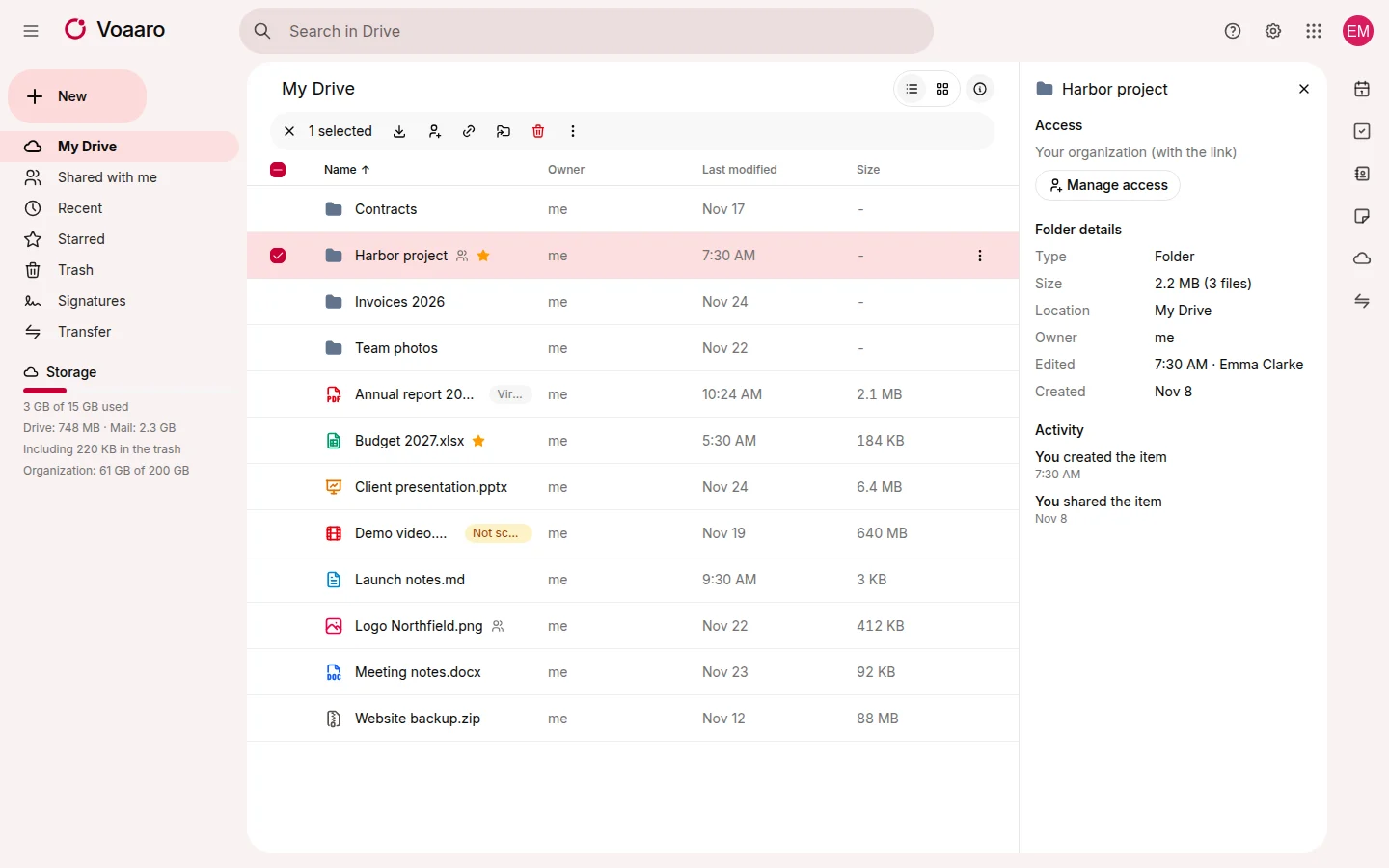
- New › New folder, Upload files or Upload folder (with all its subfolders). You can also drag files or folders from your computer onto the page.
- Uploads appear at the bottom right: three files at a time, with cancel; an interrupted connection resumes where it stopped.
- Every file is scanned by the antivirus before it can be opened or shared; an infected file is deleted. A very large file the antivirus cannot scan is marked "Not scanned".
- Rename, Move (or drag an item onto a folder, onto the breadcrumb at the top, onto My Drive to put it back at the top level, or onto Trash; several selected items move together), Add to starred.
- My Drive, Shared with me, Recent, Starred and Trash are in the left column. An item moved to the trash stays there for 30 days, then it is deleted forever; Restore puts it back.
View and download
- Double-click a file to preview it: images, videos, audio, PDF, Word documents (DOCX), text, code and CSV. The arrows go to the next file. Other formats are downloaded.
- Select several items (Ctrl or Shift + click, checkbox, Ctrl+A): the top bar shows Share, Download, Move, Move to trash. Several items or a folder download as a ZIP.
- Right-clicking an item opens the same menu.
- List or Grid (with image thumbnails); sort by name, last modified or size.
- While Drive is open, the search bar at the top searches your files; narrow it down by type, people or modification date.
- The Details panel (the "i") shows the item's location, owner, dates, access, versions and activity.
- Manage versions: upload a new version of a file; older ones are kept (20 at most), and can be downloaded and restored.
Share
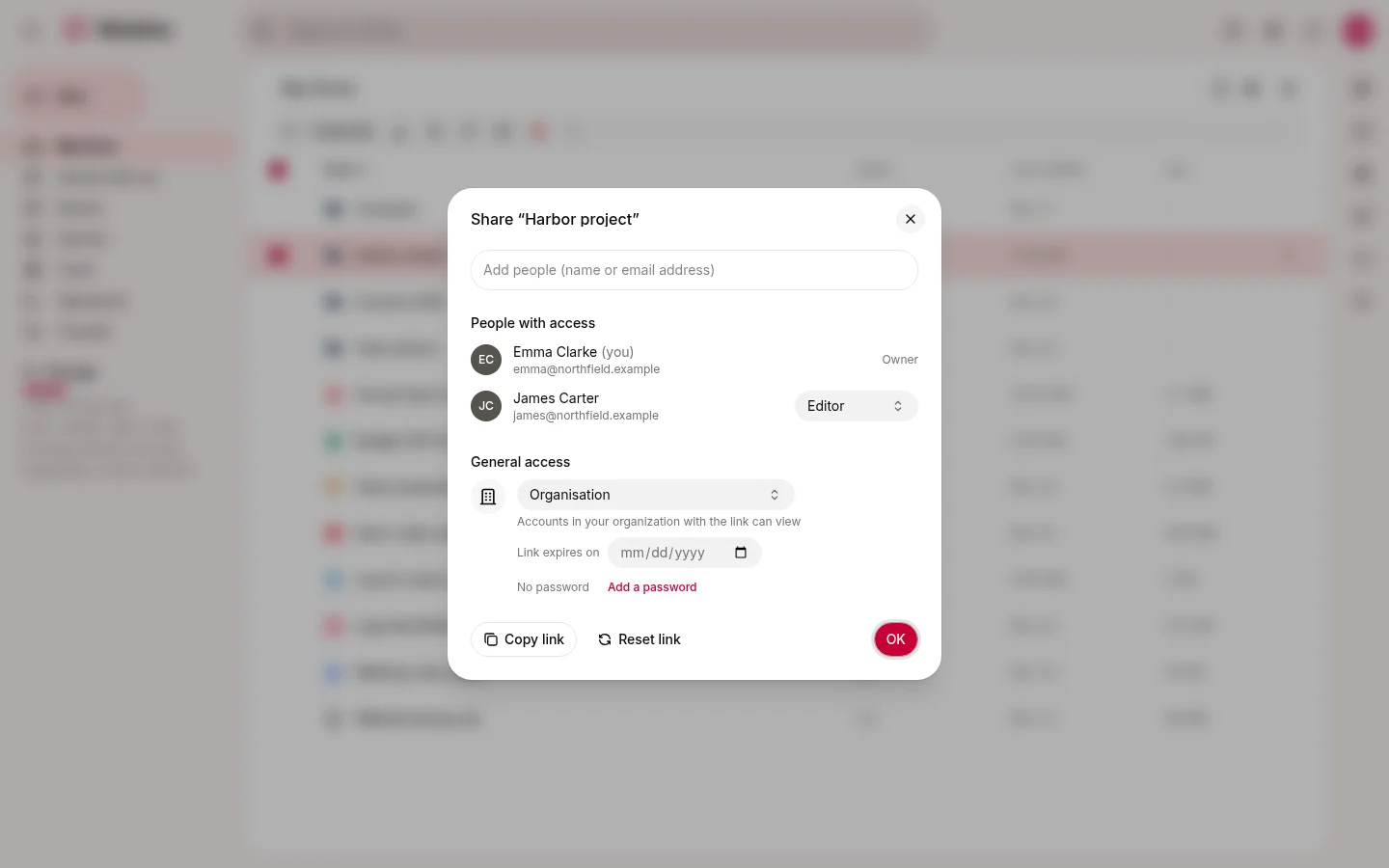
Share opens the sharing window:
- People in your organization: choose Viewer (view, download) or Editor (add files, rename, move, upload a version). They find the item in Shared with me and get an email, with your message if you write one. An access end date is possible.
- People without an account (or from another organization): they are viewers. They get an email with the link; when they open it, the page sends a one-time code to that address.
- The link's General access: Restricted (only people added), Organization (accounts in your organization with the link) or Anyone with the link (no account needed). You can add an expiry date and a password, and Reset link so the old one stops working.
- Sharing a folder shares everything in it. Only the owner changes sharing, moves to the trash or deletes.
A shared link's page shows the file (preview, download) or the folder (subfolders, Download all (ZIP)). It is never indexed by search engines.
Electronic signature
Get a Drive PDF signed without leaving Voaaro, by people in your organization or by any email address.
- In the menu of a PDF, choose Request a signature.
- Add the signers (organization addresses are suggested as you type), the order (All at once or One after another), a message and how long the request stays valid.
- Place each signer's fields on the pages: Signature, Signing date, Name, Text, Checkbox. Drag them onto the page (or tap the type, then the page), move them, resize them by their corner, remove them with the cross or the Delete key.
- Send: each signer receives an email with a personal link that expires. To open the document, they enter a one-time code received at their address, give their consent, draw their signature with a finger or the mouse (or type their name, rendered in handwriting), fill in their fields and sign. They can also decline, giving a reason.
Once everyone has signed, Voaaro produces the signed PDF: fields merged into the pages, document scripts removed, a proof page added (signers, timestamps, IP addresses, browsers, SHA-256 fingerprint of the original PDF, envelope ID, log), and a digital seal (PAdES) applied with your instance's certificate. It is saved in the Drive next to the original, with "(signed)" in its name, and everyone receives a link to download it with its SHA-256 fingerprint.
The Signatures page (left column of the Drive) lists your envelopes and their status: draft, awaiting signature, signed, declined, expired, canceled. It shows each signer's progress and the full log. From there you can remind (a new link replaces the old one), cancel and download the original or signed PDF.
This is a simple electronic signature within the meaning of the European eIDAS regulation. It suits contracts, quotes, purchase orders and everyday agreements. It is not a qualified signature: a deed that requires one (some notarial or administrative acts) needs a qualified provider. The seal is self-signed: a PDF reader reports that the certificate's identity is not verified, but that the document has not been modified. PDFs up to 20 MB and 300 pages, without a password.
Storage
Your files and your mail share the same storage, your account's: the left column shows "X of Y used", with the Drive and mail breakdown. Older versions and the trash count too; empty the trash to free up space. If your organization's plan limits its storage, the total of its accounts cannot exceed it. When storage is full, the upload is refused and a message tells you so.
Your Drive files are part of your data export.
Drive on your computer
Your Drive also opens like a computer disk, through WebDAV: network drive on Windows, Finder on macOS, Files or Dolphin on Linux, and offline sync with rclone. Everything is in Settings › Drive on your computer (or the Drive on your computer button of the Drive panel, to the right of your mail).
- Add a computer creates a Drive password, shown only once. It only opens Drive (not mail, not the console); your main password is never accepted. Revoke disconnects the computer right away.
- Give the computer the WebDAV address (
https://<your server>/webdav/), your email address as user name, and that password. The connection is always encrypted (HTTPS).
At the root: the contents of My Drive and a Shared with me folder, with your rights: what was shared with you as a viewer is read-only. Each file written from the computer becomes a new version and goes through the antivirus (an infected file is refused); it counts in your storage. A deleted item goes to the trash (30 days); only its owner can delete it. Two files with the same name show up as "name (2)". macOS and Windows system files (.DS_Store, ._*, Thumbs.db, desktop.ini) are not kept.
Windows
- File Explorer › right-click This PC › Map network drive.
- In Folder, paste the WebDAV address; check Connect using different credentials, then Finish.
- User name: your address; password: the Drive password; check Remember my credentials.
reg add HKLM\SYSTEM\CurrentControlSet\Services\WebClient\Parameters /v FileSizeLimitInBytes /t REG_DWORD /d 4294967295 /f
net stop webclient
net start webclient
macOS
- Finder › Go › Connect to Server (Cmd + K).
- Address: the WebDAV address, then Connect.
- Registered User: your address and the Drive password; check Remember this password in my keychain. Drive stays in the Finder sidebar.
Linux
- GNOME Files: Other Locations › Connect to Server:
davs://<your server>/webdav/. - KDE Dolphin: type
webdavs://<your server>/webdav/in the address bar, then Add to Places. - davfs2 (mounted folder, for example
/mnt/drive):
sudo apt install davfs2
sudo mkdir -p /mnt/drive
echo "https://mail.exemple.com/webdav/ emma@exemple.com PASSWORD" | sudo tee -a /etc/davfs2/secrets >/dev/null
sudo chmod 600 /etc/davfs2/secrets
sudo mount -t davfs https://mail.exemple.com/webdav/ /mnt/drive -o uid=$(id -u),gid=$(id -g)
Offline sync with rclone
A network drive reads files online. To keep a copy on the computer, usable offline and synced both ways, use rclone (Windows, macOS, Linux). The first command adds Drive; the second runs the first sync (--resync); the last one, to run by hand or every 15 minutes (crontab -e, Task Scheduler on Windows), then syncs changes on both sides. The Drive on your computer page shows these commands already filled in.
rclone config create voaaro webdav url=https://mail.exemple.com/webdav/ vendor=owncloud user=emma@exemple.com pass=$(rclone obscure 'PASSWORD')
mkdir -p ~/Drive
rclone bisync ~/Drive voaaro: --resync --create-empty-src-dirs --exclude ".DS_Store" --exclude "._*" --exclude "Thumbs.db" --exclude "desktop.ini"
rclone bisync ~/Drive voaaro: --create-empty-src-dirs --exclude ".DS_Store" --exclude "._*" --exclude "Thumbs.db" --exclude "desktop.ini"