Newsletters › Broadcasts lists the broadcasts of the domain chosen at the top right: All, Drafts, Scheduled, In progress, Sent tabs, search, and for each one its state, recipients, date, the gauge of delivered messages, open and click rates. List / Calendar switches to a month calendar showing scheduled and sent broadcasts at a glance.
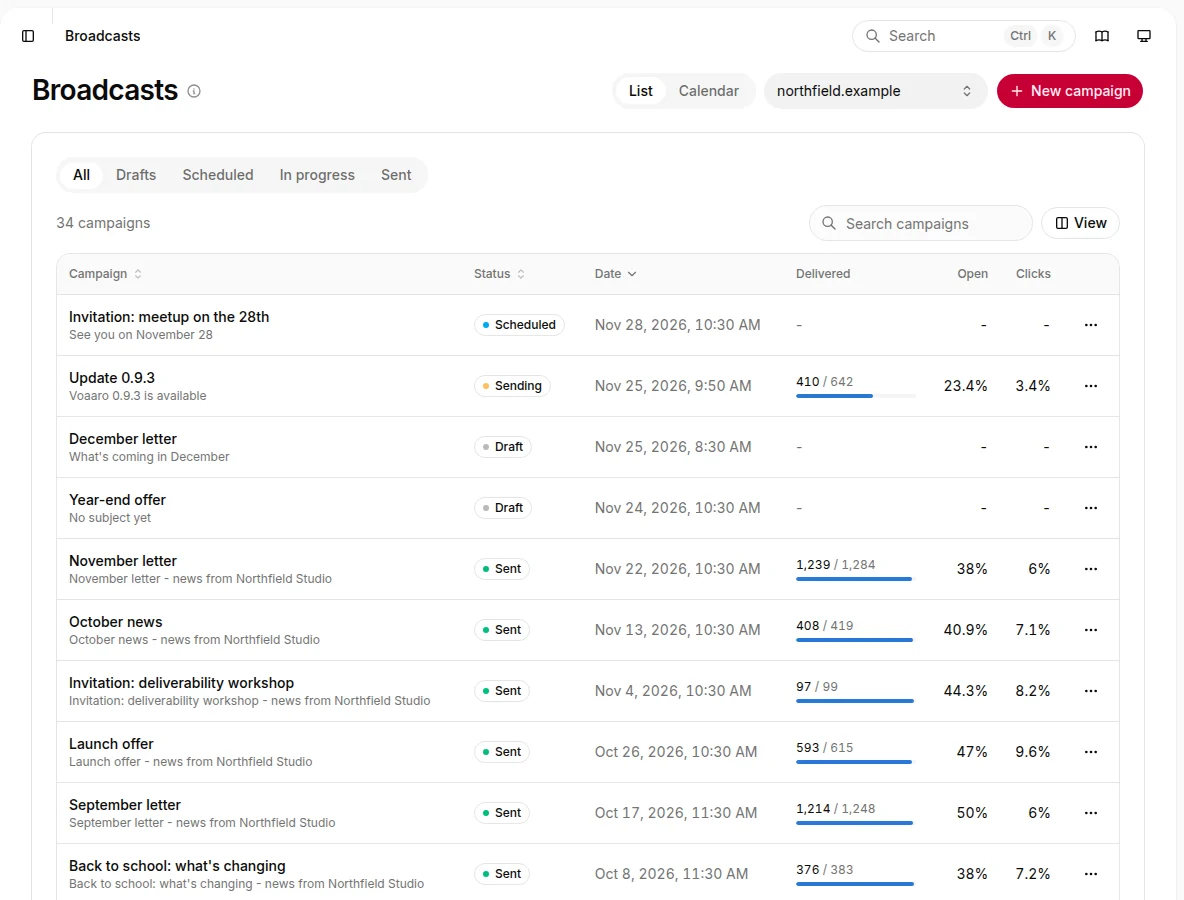
⋯ menu or right-click on a broadcast: Duplicate, Cancel schedule (it becomes a draft again), Stop sending (messages already sent stay sent, the others will not leave), Delete (draft).
Create a broadcast, step by step
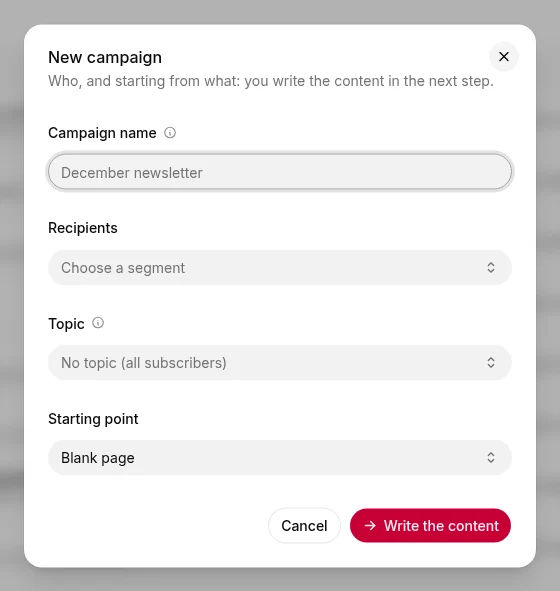
New campaign opens a small dialog: the Campaign name (to find it in the list; recipients see the subject, not this name), the Recipients and where the content starts from (Blank page or a newsletter template). The broadcast then opens full screen, with three numbered steps at the top. Each step reopens with a click; a green tick marks the completed ones.
1. Recipients
The segment or list (Segments) and, if you want, a topic: the broadcast then only goes to contacts subscribed to that topic. None (all subscribers) sends to the whole segment.
2. Content
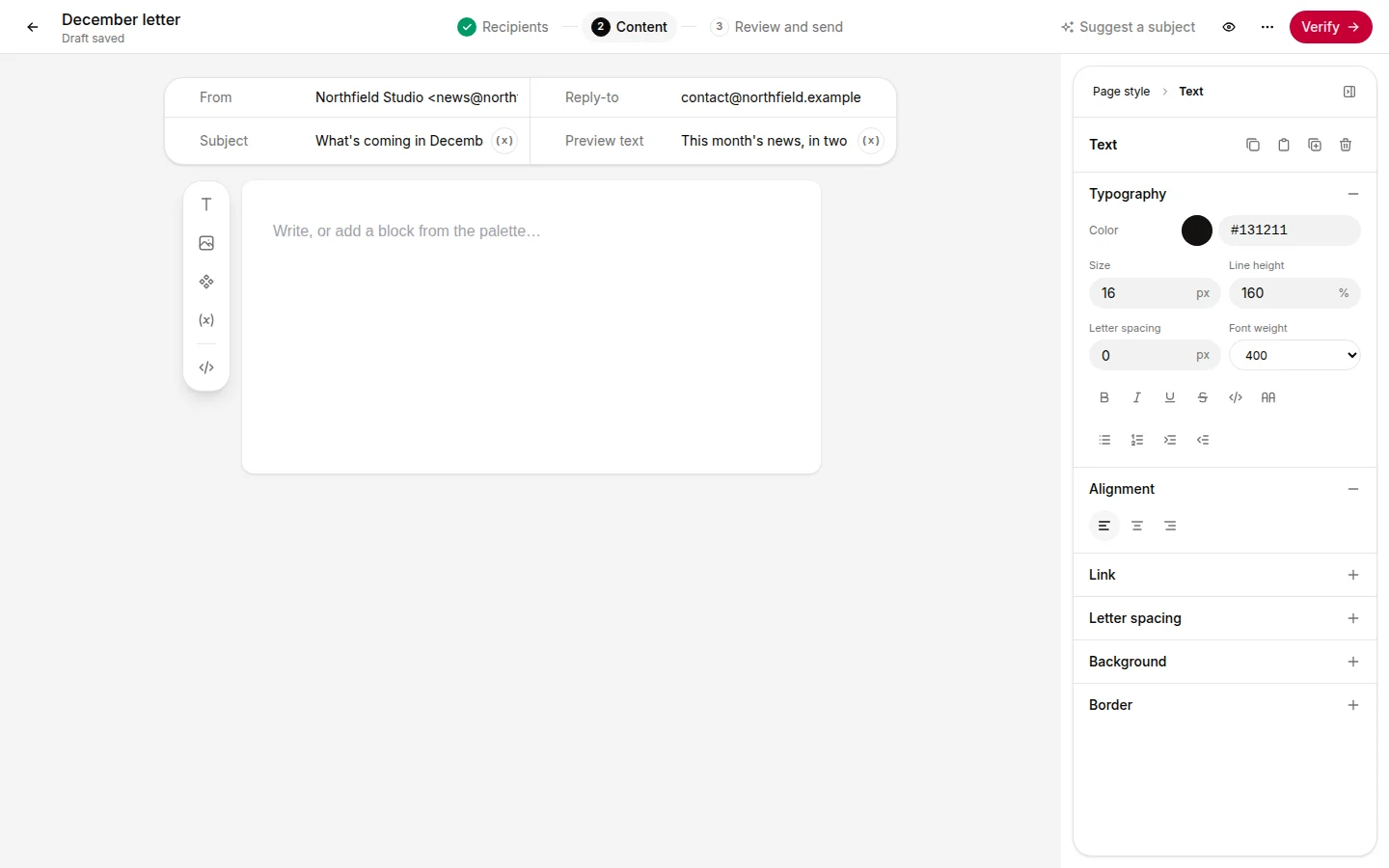
The visual editor, as for templates: Sender (an address on a verified domain), Subject, Preview text, then the blocks. Contact variables ({{ prenom }}, your properties) are inserted from the palette. The unsubscribe footer is added automatically. The content is saved when you move on to the next step.
Suggest a subject (at the top of the editor): the AI assistant reads the content and suggests five subjects, each with its preview text; Use puts them in the header, where you can still edit them. An optional instruction steers the suggestions ("shorter", "friendly tone"). It uses the instance's AI assistant (the organization's key or your own, with its daily limits, and your consent the first time); without an assistant configured, the button stays grayed out and says why.
3. Review and send
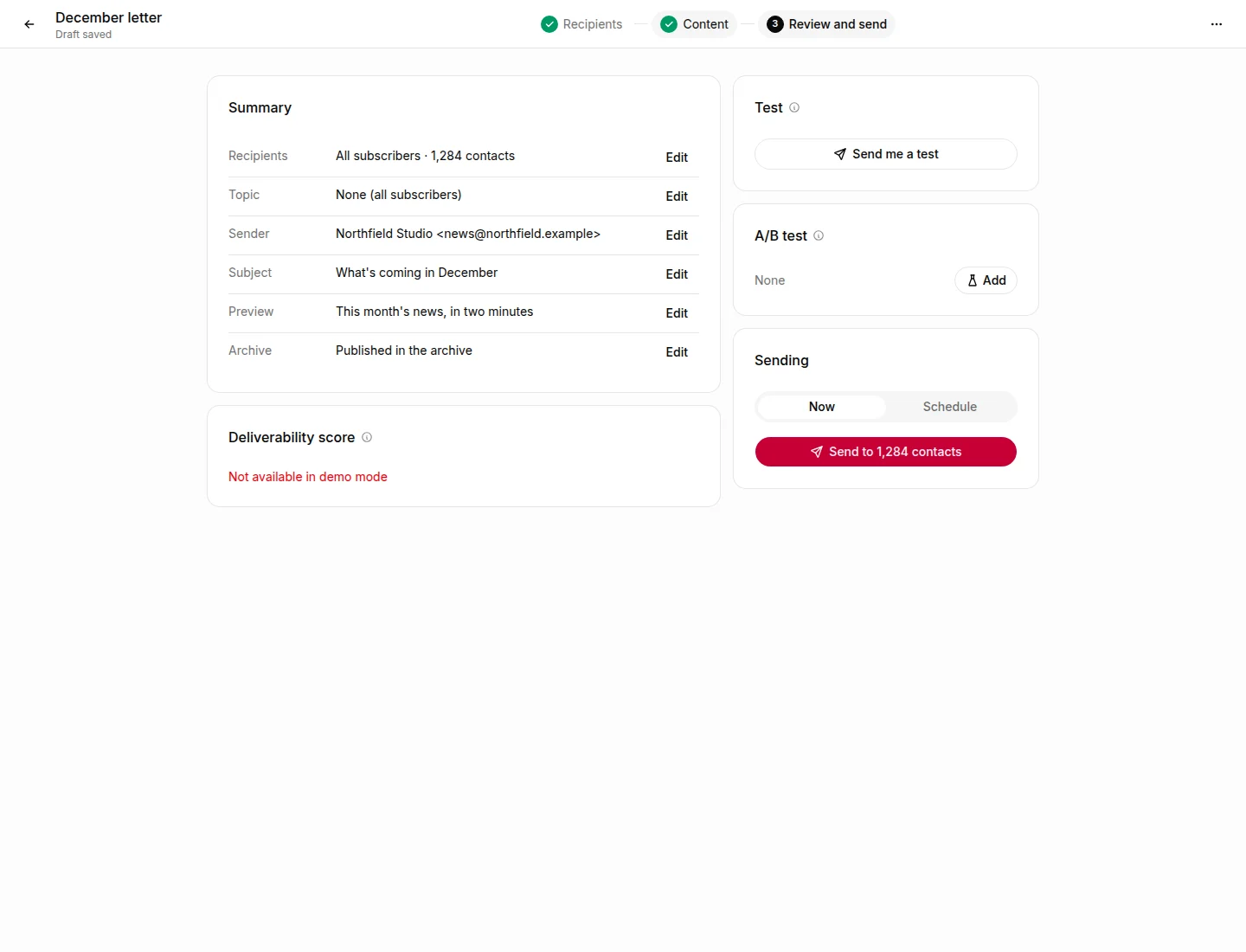
The Summary repeats everything (sender, subject, recipients, topic), with Edit next to each line to go back to the matching step. Below:
- Deliverability score: a mark out of 100 (grade A to E) and a list of checks, each with concrete advice, sorted into five groups: domain authentication (verified domain, SPF, DKIM, DMARC), unsubscription (link, one-click unsubscribe, postal address), content (subject, preview text, text part, image-to-text balance, size, shortened or unencrypted links, trigger words, image alt text), audience (share of invalid or risky addresses and of low-engagement contacts among the recipients) and reputation (domain and IP blocklists, bounce and complaint rates of the broadcasts of the last 30 days). Recalculate recalculates after a fix. The score never blocks sending.
- Send me a test: the broadcast lands in your mailbox, with your values in the variables.
- A/B test (optional): a variant of the subject, sender or preview text goes to a sample; after the chosen delay, the best one according to the criterion (open or click rate) goes to everyone else.
- Sending: Now, or Schedule sending at a Date and time in a Time zone (searchable list: "Search a city or time zone"), up to 30 days ahead.
The last button says what it will do: Send to 1,284 contacts or Schedule.
Gradual ramp-up and one-click unsubscribe apply automatically. Send to your most engaged contacts first, from a dedicated sending domain.
Broadcast report
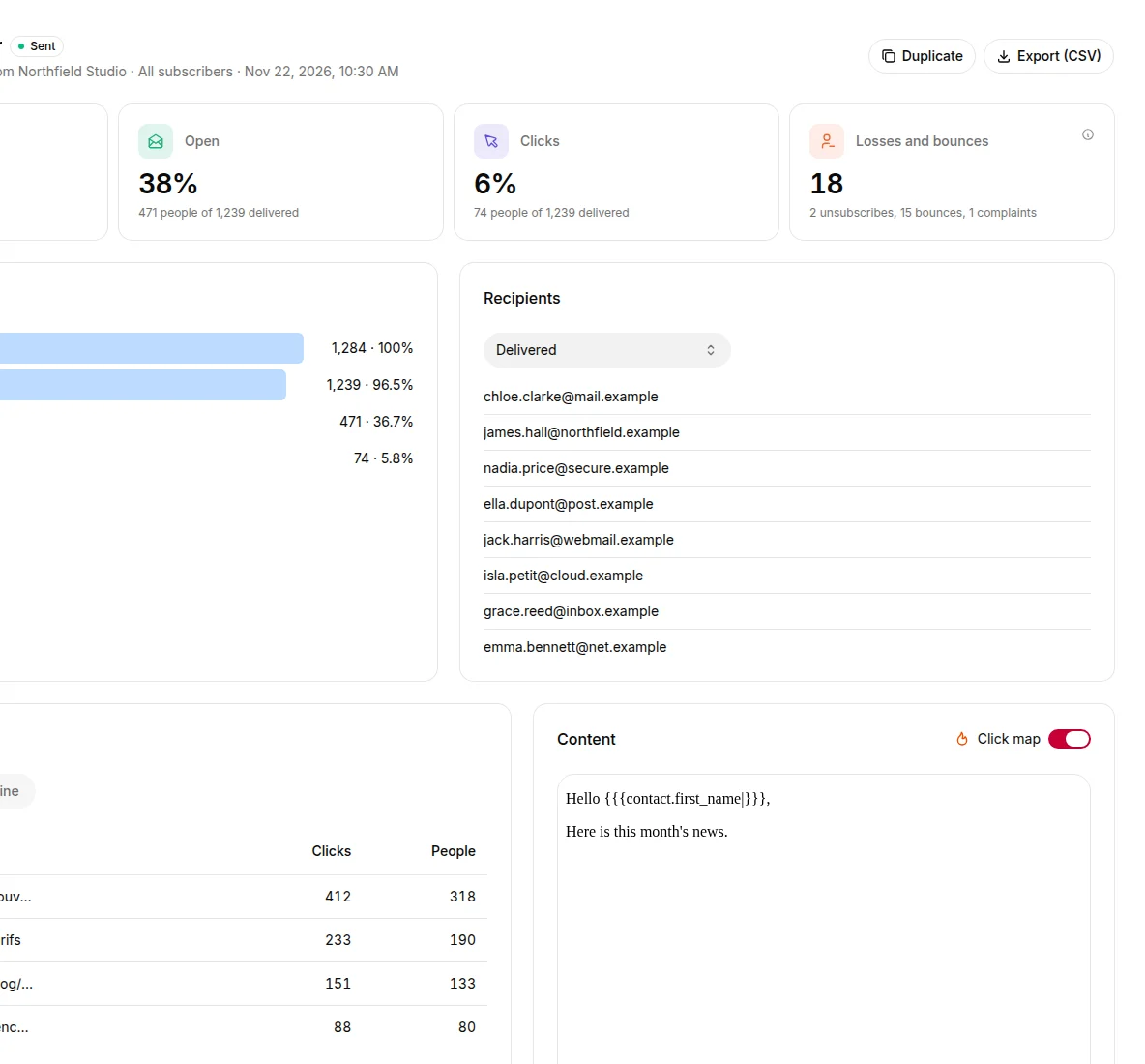
A sent broadcast opens on its report: Delivered, Opened, Clicked, Unsubscribes, Bounces, Complaints tiles; the Recipient journey (from segment to action: each bar counts people, and a click also counts as an open); clicks per link; Losses and bounces; the list of recipients in each category. Above 2 % bounces or 0.1 % complaints, providers slow your sending down: the report says so.
Campaign statistics
Newsletters › Campaign statistics compares sent broadcasts over a Period: delivery, open, click, unsubscribe and bounce rates of each (as a percentage of delivered messages, for broadcasts whose sending key has tracking turned on), and an Open and click per campaign chart, to compare subjects, content and sending times.