These four pages of the Newsletters group prepare and extend broadcasts. Like the others, they apply to the domain chosen at the top right.
Newsletter templates
Newsletters › Newsletter templates: layouts to reuse for each broadcast. New template offers starting templates (Newsletter, Announcement, Article digest) to adapt in the editor; light or dark, desktop or phone preview. Create a campaign from a template opens the step-by-step creation with that content.
Signup forms
Newsletters › Signup forms: how new contacts sign up.
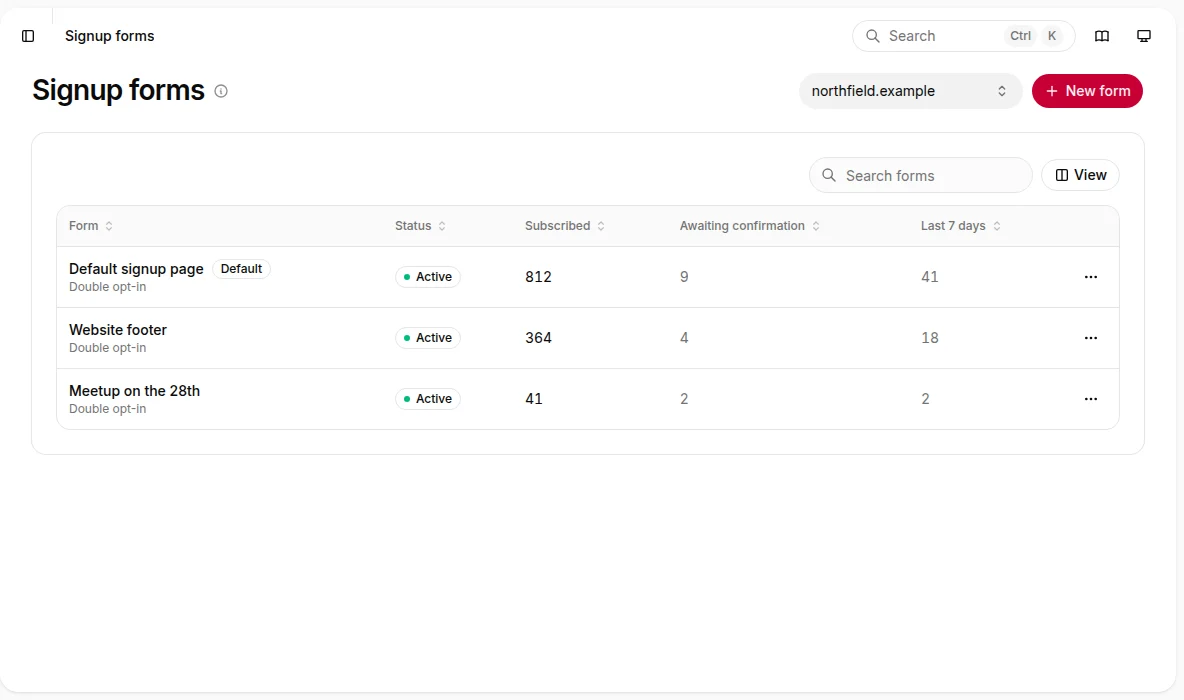
- Default signup page: a page hosted by Voaaro, to share (Copy link, Open page). It cannot be deleted; turn it off if needed.
- New form: a window asks for the name, whether to ask for the first name, and email confirmation; the form is only created on Create form. It is another page, or a form to embed in your site (Embed code, Public key, Allowed origins (one per line): the sites allowed to submit it).
A form's page has several parts:
| Part | Settings |
|---|---|
| Introduction | page title, text, header image (logo, banner; 200 KB at most), language of the page and of the email |
| Fields | first name, properties, Offered topics (checkboxes), Consent text |
| Subscription | Segments for new subscribers, Double opt-in (a confirmation email, recommended) or Direct signup, Anti-bot proof required |
| Thank-you | Thank-you message or Redirect to (optional) a page of your site |
| Appearance | button colour, background colour, button text |
The Subscribed tab lists sign-ups and their state (Awaiting confirmation, Confirmed, Expired). A form can also be connected through the API (Signup form).
Automations
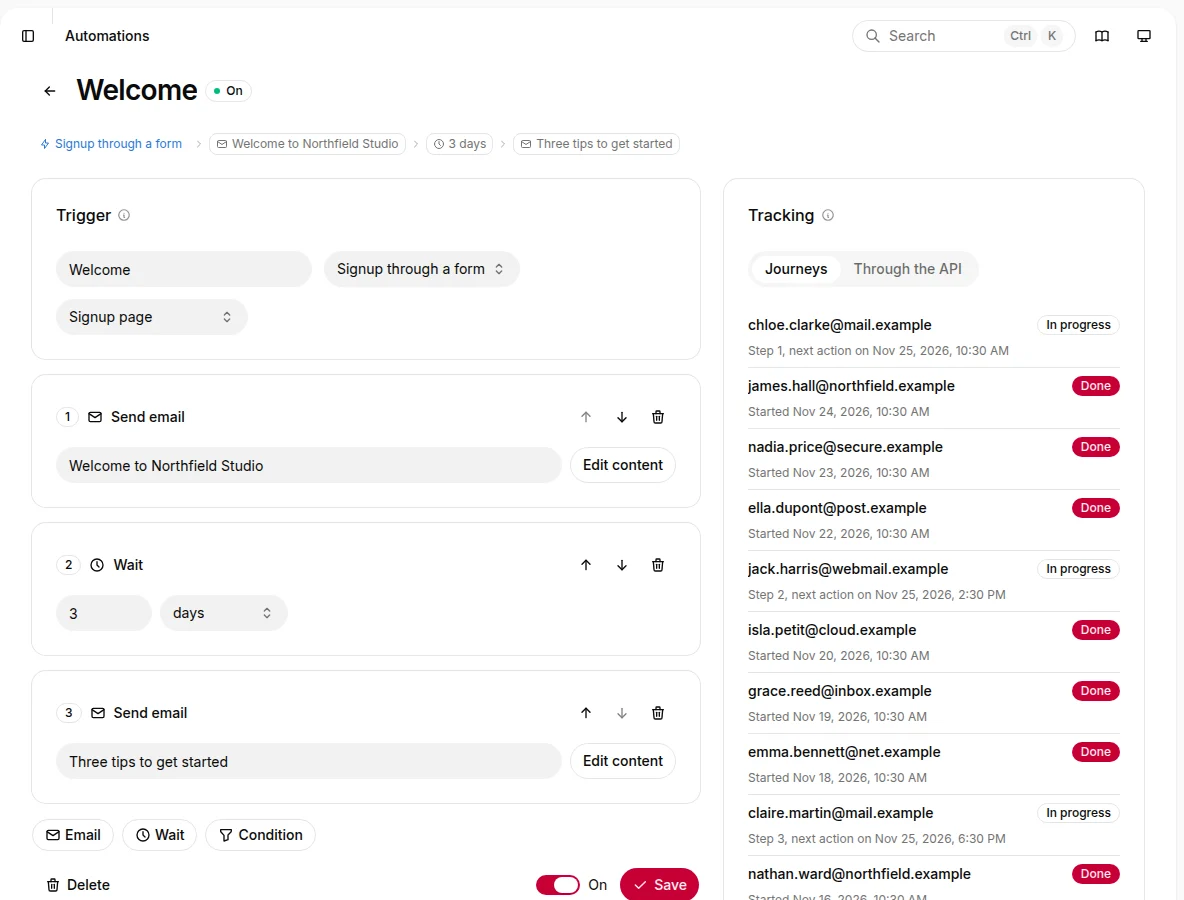
Newsletters › Automations: email series that go out on their own, for example a Welcome series. The list shows each one's journey in short (trigger › email › 3 days › email), its status (On, Paused, Draft) and its figures: in progress, done, emails sent.
New automation opens a window (name, trigger and its list, topic, form or event); the automation is only created, as a draft with a first welcome email, on Create automation. Then, on its page:
- the Trigger: Signup through a form, Added to a list, Subscribed to a topic, New contact or Event sent through the API (its name, for example
order.paid); - the Steps, in order (Move up, Move down, Delete the step): Send email (subject, Edit content in the editor), Wait a duration (minutes, hours, days), Condition ("Continue only if…");
- Turn on; Pause stops it.
The page also shows Tracking: the contacts who entered the journey, their step and their state (In progress, Done, Stopped).
Newsletter settings
Newsletters › Newsletter settings (the "manage newsletter settings" permission):
- Default sender and Reply-to address of broadcasts;
- Default sending key (otherwise the oldest active key; a personal key only sends in your name);
- the sender's Postal address, required in every broadcast (the law requires it in many countries);
- Campaign footer, with the Unsubscribe link, added by the service if the content lacks it;
- Public archive: a web page listing published broadcasts (Open the archive).