The Users and access › Roles and access page decides what everyone can do in the administration: you can give one person read-only access to newsletters, or remove a permission from a domain admin.
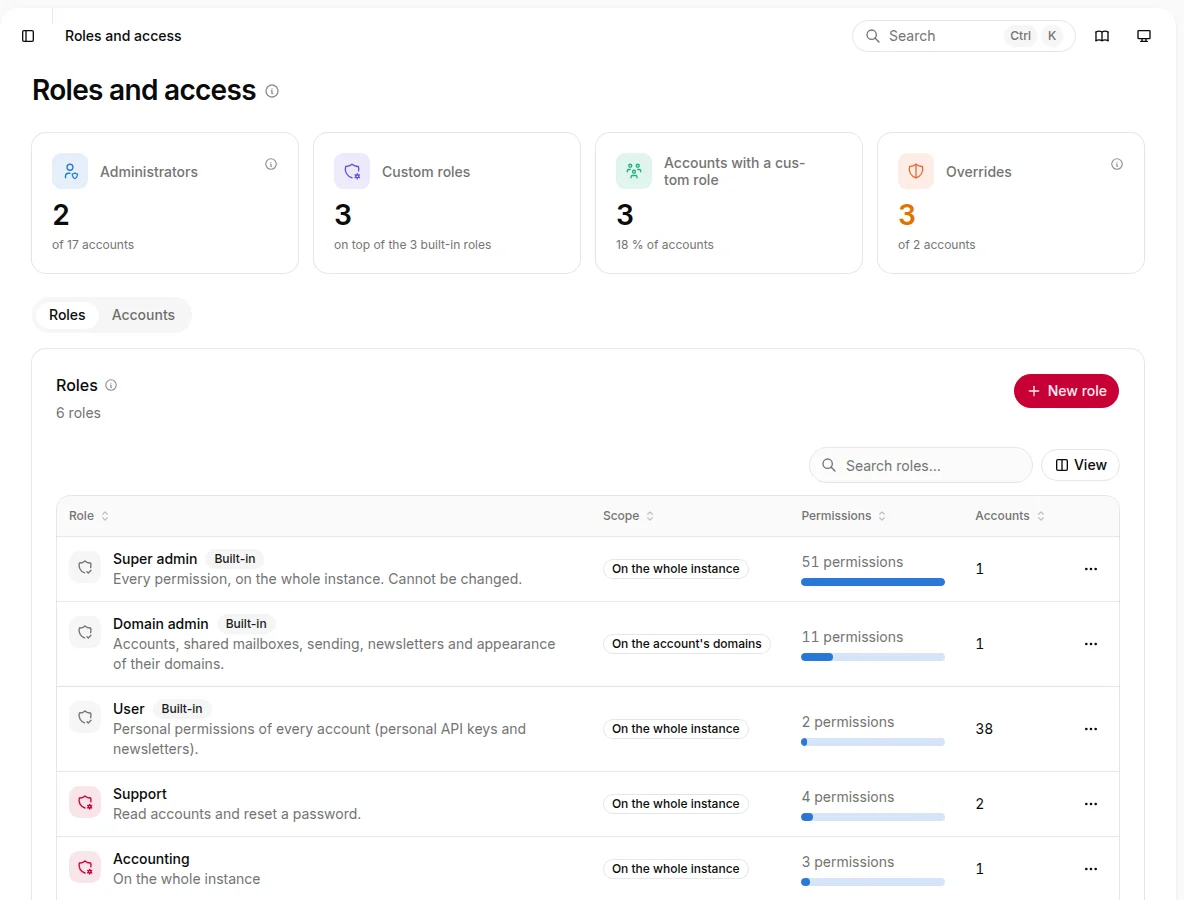
At the top, four tiles: Administrators, Custom roles (on top of the three built-in roles), Accounts with a custom role, Overrides. Below, two tabs: Roles (each role, its scope, its number of permissions and accounts) and Accounts (each account's permissions).
Permissions
A permission opens one precise action: user.read (view accounts), newsletter.send (send a campaign), audit.read (audit log)… They are grouped (users, domains and deliverability, sending and API, newsletters, appearance, security, system, my account). The list is set by Voaaro; an update may add new ones.
Some only apply to the whole instance (domains and DNS, outbound IPs, health, storage, updates, licence, audit log, roles…): a role limited to domains never opens them.
Roles
Three roles are built in and keep the previous access, with no change for existing accounts:
| Role | What it grants |
|---|---|
| Super admin | Every permission, on the whole instance. It cannot be changed, and no override restricts it. |
| Domain admin | Accounts, shared mailboxes, API keys, templates, sending log, newsletters and appearance of their domains. Its permissions can be adjusted. |
| User | Held by every account: personal permissions (personal API keys). Newsletters are managed per domain. |
New role creates your own role: a name, a scope (on the whole instance or on the account's domains) and the ticked permissions. An account can hold several.
Account page
Accounts tab › an account:
- Assigned roles and account domains (the scope of domain roles);
- for each permission, its source: through a role, added for this person, removed for this person or not granted;
- overrides: add a permission (on the instance or on the account's domains) or remove it, with a reason. A removed permission always wins over a role.
Change an account's role
Users page: an account's ⋯ menu (or right-click on its row) › Edit role and access, or click its Roles column. A panel opens on the right:
- Account type: user, domain admin (with the Account domains), organization admin, super admin; then Save account type.
- Assigned roles: the custom roles, chosen from the list (if none exists yet, a Create a role button); then Save roles.
- Overrides: Full page: exceptions and effective permissions.
- Secondary address identities: Enable or disable for this person….
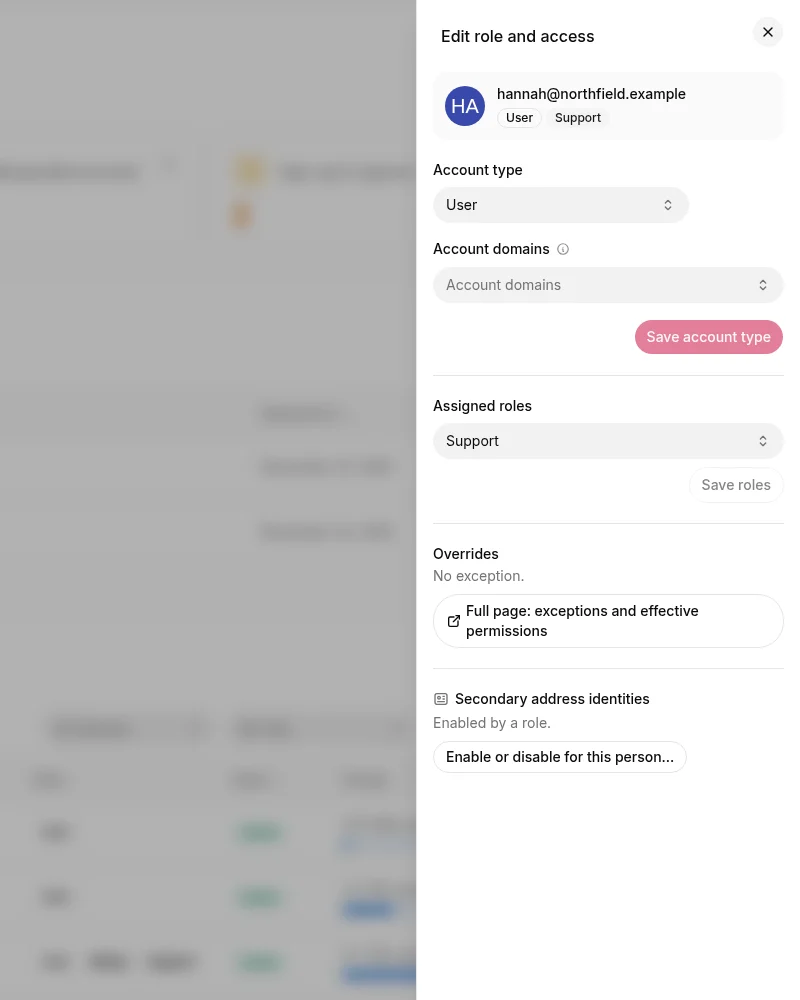
The same panel opens from Roles and access › Accounts. An account that becomes admin must enable two-factor authentication at its next sign-in before administering. Only a super admin makes or unmakes a super admin, and nobody changes their own role.
Roles of a domain admin
A domain admin also sees this page: they create their own roles, valid on their domains only, with permissions they hold themselves, and assign them to the accounts of their domains. They neither see nor change other people's roles.
Security rules
- An account holding an administration permission must enable two-factor authentication (Settings › Security) before using that permission. Until then, the administration shows it what to do and the server refuses its administration actions, but its mailbox stays open.
- You only grant (in a role, by assignment or by override) permissions you hold yourself on the whole instance.
- You change neither your own permissions, nor a super admin's, nor those of an account holding a permission you lack. The same rule applies on the Users page: a domain admin cannot reset the password of a more powerful account.
- Every change goes to the audit log (role created, changed, deleted; an account's roles and overrides).
The server checks every permission on every request; the administration menu, search (Ctrl+K) and buttons hide what is not allowed.